Scatterplot Graph Report🔗
Scatterplot Graphs are a good way to visualize the distribution and relationship of benchmark results across a range of inputs or parameters.
SimpleBench leverages the Seaborn and matplotlib libraries to create scatterplot graphs that display benchmark results in a clear and informative manner.
Note
Scatterplot Graph reports are just one of several reporting options available in SimpleBench. You can generate multiple other report types, including Rich Table reports, CSV reports, and JSON reports, each providing different perspectives on your benchmark results. See Reports for an overview of all available report types.
Refer to the Command-Line Options section for more details on how to generate and customize these reports from the command line.
Example Usage🔗
 1#!python3
 2"""Example Scatterplot Benchmark Script"""
 3import simplebench
 4
 5
 6@simplebench.benchmark(
 7    kwargs_variations={'size': [1, 10, 50, 100, 200, 300, 400, 500, 600, 700, 800, 900, 1000]},
 8    variation_cols={'size': 'Size'},
 9    use_field_for_n='size')
10def addition_benchmark(**kwargs):
11    """A simple benchmark that sums a range of numbers."""
12    sum(range(kwargs['size']))
13
14
15if __name__ == "__main__":
16    simplebench.main()
Saving the above code to a file named my_benchmark_script.py, you can run the benchmark and generate a Scatterplot Graph report of operations per second using the following command:
python my_benchmark_script.py --scatterplot-graph.ops --progress
This command executes the benchmarks in my_benchmark_script.py and generates
a Scatterplot Graph displaying the operations-per-second results that is saved
to a file.
The output graph will look something like this:
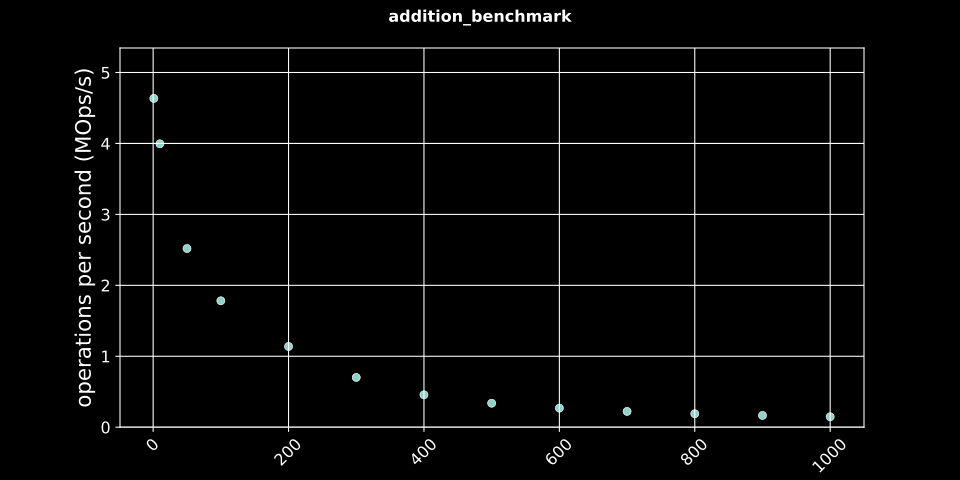
Scatterplot Graph of Addition Benchmark Operations Per Second🔗
Report Variations and Destinations🔗
The example above shows an operations-per-second ‘ops’ report saved to the filesystem.
SimpleBench provides several variations:
–scatterplot-graph: Generates graphs for all result types (ops, timing, and memory).
–scatterplot-graph.ops: Generates graphs only for operations-per-second results.
–scatterplot-graph.timing: Generates graphs only for timing results.
–scatterplot-graph.memory: Generates graphs only for memory usage results.
Graph reports are saved to the filesystem in the –output_path directory (by default .benchmarks below the current working directory). You can explicitly specify the destination by appending the destination name (filesystem, callback) to the CLI report selection flag as space-separated values. For example:
python my_benchmark_script.py --scatterplot-graph.ops filesystem
Advanced Features🔗
Beyond basic usage, Scatterplot Graph reports support advanced features that enhance their utility for performance analysis.
Parameterized Benchmarks🔗
When benchmarks are parameterized, SimpleBench plots these variations in the graph, often mapping parameters to the X-axis or using visual distinctions (like color or style) to differentiate between parameter values.
This allows you to easily compare performance across different configurations. For example, if you have a benchmark that takes an input size parameter, the report can visualize how performance varies with different input sizes.
See the ../../defining_benchmarks section for more details on defining and using parameterized benchmarks.
Custom Complexity Weightings🔗
Related to parameterized benchmarks, SimpleBench allows you to specify custom complexity weightings (number/size weighting) for your benchmarks.
These weightings are used as the N value (presented as the independent variable on the X-axis), helping you analyze how performance scales with input size and parameterization.
For example, you might specify that a benchmark set covers input sizes 1, 20, 100, 1000, which will be plotted on the graph for each size.
When defining a parameterized benchmark, you can provide complexity weightings that reflect the expected performance characteristics of the code being benchmarked and are matched with the parameters being used. This helps in understanding how the performance of the benchmarked code changes as the input size or other parameters vary.
These advanced features make these reports a powerful tool for analyzing the performance of parameterized benchmarks and understanding the scalability of your code.